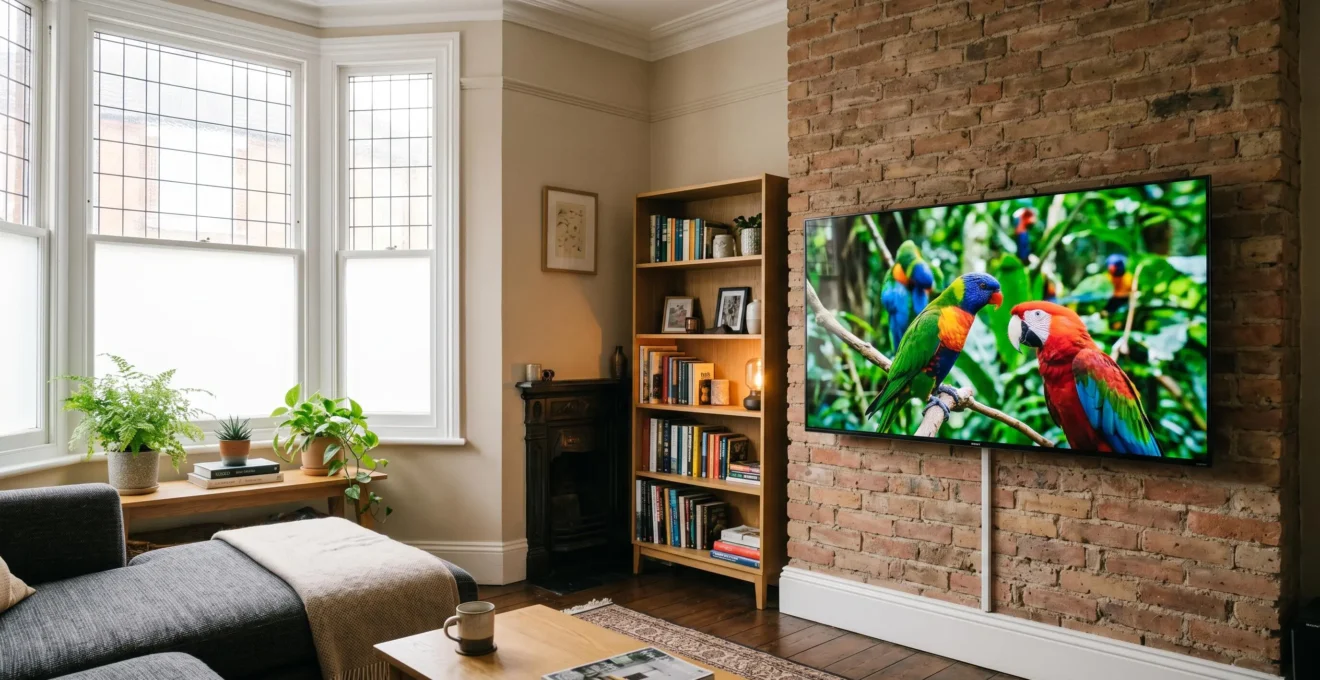
Achieving true-to-life colour on your TV is not about buying expensive equipment, but about systematically reversing the « showroom » settings designed to grab attention in a store.
- Out-of-the-box settings like ‘Vivid’ or ‘Dynamic’ are intentionally oversaturated to compete under harsh retail lighting, distorting the director’s original intent.
- A foundational calibration can be done in under an hour using free test patterns and your TV’s ‘Cinema’ or ‘Filmmaker’ mode as a starting point.
Recommendation: Before exploring any other settings, switch your TV’s picture mode to ‘Cinema’, ‘Movie’, or ‘Filmmaker Mode’. This single change will account for about 80% of the journey towards accurate colour.
You’ve just brought home a brand-new 4K television, ready to be immersed in the latest blockbuster. But as the opening scene plays, something feels off. Skin tones look unnaturally orange, explosions are a neon mess, and dark scenes are either a murky grey or an inky blob with no detail. This is a common frustration for home cinema enthusiasts across the UK. The vibrant, punchy colours that looked so impressive in the aisles of Currys or John Lewis now seem garish and fake in the comfort of your living room.
The common advice is to simply switch to ‘Filmmaker Mode’ and hope for the best, or conversely, that the only path to accuracy is a £300 professional calibration service. While these are valid points, they miss the crucial middle ground where the informed enthusiast can achieve outstanding results. The secret isn’t a single button press or an expensive tool, but a methodical understanding of the barriers between you and a perfect picture.
This guide rejects the one-size-fits-all approach. Instead, we’ll build your confidence as an ‘affordable colour-accuracy consultant’ for your own home. We will adopt a three-tiered system: establishing the correct Foundation with the right picture mode, Fine-Tuning the core settings using your own eyes and free tools, and finally, mastering your Environment and Source to ensure your calibration holds up, day or night. This approach will empower you to systematically remove the distortions and finally see films exactly as the director intended.
To guide you through this process, this article breaks down the essential concepts and provides practical, step-by-step instructions. From understanding why default settings fail to choosing the right technology for your specific room, you’ll find everything you need to begin your journey towards cinematic perfection.
Summary: A Practical Guide to Achieving Film-Accurate Colour on Your TV
- Why Do Out-of-Box TV Settings Make Colours Pop but Ruin Film Accuracy?
- How to Calibrate Your Display Using Free Test Patterns and Your Eye?
- Rec.709 or DCI-P3:Why Does Netflix Keep Suggesting Crime Dramas After You Watched One?
- The Daytime Calibration That Looks Wrong After Sunset
- Should You Pay £300 for Professional Calibration or Spend 3 Hours DIY?
- The Showroom Comparison That Led to Wrong Technology Choice at Home
- The Colour Shift That Makes Your Brand Unrecognisable on Mobile Versus Desktop
- OLED Perfect Blacks or QLED Brightness: Which Technology for Your Viewing Room?
Why Do Out-of-Box TV Settings Make Colours Pop but Ruin Film Accuracy?
The primary reason your new TV looks garish at home is what we can call the « Showroom Deception. » Televisions in a retail environment like Argos or Richer Sounds are not set up for optimal viewing; they are set up for optimal selling. They compete for your attention on a wall with dozens of other screens, all blasting under harsh, cool-white fluorescent lighting. To stand out, manufacturers enable ‘Vivid’ or ‘Dynamic’ picture modes by default, which push brightness, contrast, and colour saturation to their absolute limits.
This creates a bright, eye-catching image that can cut through the store’s lighting but is completely detached from any artistic or creative intent. These settings often engage aggressive post-processing, including artificial sharpening that creates ugly halos around objects and motion smoothing (often called the « soap opera effect ») that makes 24fps film look like a cheap daytime TV show. A display technology analysis highlights that TVs are shown with brightness and saturation pushed to extreme levels to compete in these conditions.
The film industry recognised this problem and collaborated with the UHD Alliance to create a simple solution: Filmmaker Mode. This one-click preset is the industry’s antidote to the Showroom Deception. As Panasonic UK’s support documentation explains, it’s designed to give you back control.
Filmmaker Mode disables post-processing effects, motion smoothing, and other enhancements that can alter the original content. This ensures that you see movies and TV shows exactly as the filmmakers intended them to be seen.
– Panasonic UK Support Documentation, Filmmaker Mode Technical Specifications
Choosing ‘Filmmaker Mode’, ‘Cinema’, or ‘Movie’ mode is your first and most important step. It instantly aligns your TV’s baseline settings with the standards used in professional editing suites, correcting the white point to the D65 industry standard and disabling the processing that destroys the cinematic look.
How to Calibrate Your Display Using Free Test Patterns and Your Eye?
Once you’ve set your TV to ‘Cinema’ or ‘Filmmaker Mode’, you’ve already won 80% of the battle. The next 10-15% can be achieved without any expensive gear, using free calibration patterns and your most sensitive tool: your eyes. This process involves fine-tuning the five foundational pillars of picture quality: Brightness, Contrast, Colour, Temperature, and Sharpness. The goal is not to make the image « pop, » but to ensure you are seeing every bit of detail the source material contains.
You can find professional-grade test patterns for free. The AVS HD 709 patterns are a long-standing favourite in the home cinema community, available on the Internet Archive for download to a USB stick. These patterns are specifically designed to test the limits of a Rec.709 display (the standard for all HD Blu-ray and broadcast TV). By following a logical sequence, you can dial in your settings with a surprising degree of accuracy.
Your Action Plan: 15-Minute Basic Eye-Test Calibration
- Prepare Your Tools: Download the free AVS HD 709 calibration patterns from a source like the Internet Archive. Load them onto a USB stick and play them through your TV’s media player.
- Set the Foundation: Switch your TV’s picture mode from Vivid/Dynamic to ‘Cinema’, ‘Movie’, or ‘Filmmaker Mode’. This provides the most accurate baseline. Then, find the colour temperature setting and change it from ‘Cool’ or ‘Standard’ to ‘Warm 2’ (or the warmest option available). This targets the D65 (6500K) white point standard used in filmmaking.
- Calibrate Black Levels (Brightness): Using the black-level pattern (often called ‘Flashing Bars’), adjust the ‘Brightness’ control. Your goal is to make bar 16 completely invisible while still being able to just barely distinguish bar 17 from the black background. This ensures deep blacks without crushing shadow detail.
- Calibrate White Levels (Contrast): Now, use the white clipping pattern. Adjust the ‘Contrast’ control so that you can see all the distinct bright bars without them merging into a single white blob. This preserves detail in bright areas like clouds or snow.
- Eliminate Artificial Edges (Sharpness): Factory sharpness is usually set way too high (around 75%). Turn it down significantly, to somewhere between 10-20%. The goal is to remove the artificial ‘halos’ or white outlines around objects without making the image blurry. Then, test with real UK content on BBC iPlayer or ITVX, focusing on realistic skin tones and shadow detail.
For a quick-and-dirty colour check, a surprisingly effective tool is already in your pocket. Modern high-end smartphones like iPhones have incredibly accurate screens. Find a high-quality photo with natural skin tones on your phone, then display the same image on your TV. Hold the phone up to the screen for a direct comparison.
This technique is particularly useful for judging skin tones. If the faces on your TV look sunburnt or pale compared to the reference image on your phone, you may need to adjust your TV’s ‘Colour’ (saturation) or ‘Tint’ (hue) settings slightly. This simple comparison provides a powerful real-world sanity check for your calibration efforts.
Rec.709 or DCI-P3:Why Does Netflix Keep Suggesting Crime Dramas After You Watched One?
While the second half of that question is best answered by Netflix’s algorithm engineers, the first part—Rec.709 or DCI-P3—gets to the heart of a major source of colour inaccuracy: the colour space. Think of a colour space as a box of crayons. For decades, all standard HD broadcast TV (like the BBC), DVDs, and Blu-rays were made using the ‘Rec.709’ box, which has a specific, limited number of colours. Modern 4K HDR content, however, uses a much bigger box of crayons called ‘BT.2020’, which contains the ‘DCI-P3’ colour gamut used in digital cinemas.
The difference is significant. According to colour gamut technical specifications, DCI-P3’s range is 26% larger than sRGB/Rec.709, offering deeper, richer reds, greens, and yellows. This is fantastic when you’re watching a 4K HDR film on Netflix or Disney+. Your TV is designed to receive the BT.2020 signal and display those wider colours. The problem arises when a Rec.709 signal (like from your Sky Q box) is sent to the TV incorrectly. If the TV thinks it’s receiving a wide-gamut signal when it’s actually getting a narrow-gamut one, the colours will look pale and washed out. This is a common issue with UK broadcasting equipment.
Case Study: The Washed-Out Colours of UK Set-Top Boxes
A well-documented issue affects many UK homes, particularly with devices like the Sky Q box. When an SDR signal (standard dynamic range) encoded in the Rec.709 colour space is incorrectly sent inside a BT.2020 container, the TV gets confused. It interprets the limited colour palette of Rec.709 as if it were the much wider BT.2020 palette, causing severe desaturation. This is why a programme on your Sky Q box might look pale and lifeless, while the same show on the TV’s native Netflix app looks vibrant and correct. A modern TV should auto-switch between Rec.709 for broadcast HD and BT.2020 for 4K HDR streaming, but many fail to do this correctly without manual intervention, often requiring you to ensure the source device is set to ‘Auto’ for its colour space output.
This highlights a crucial principle of calibration: source-first accuracy. Your TV can only display what it’s being sent. If the source device (a set-top box, games console, or streaming stick) is configured incorrectly and sending the wrong colour space information, no amount of TV calibration will fix the resulting washed-out or oversaturated image. The first step is always to ensure your source devices are set to automatically detect and send the correct signal.
The Daytime Calibration That Looks Wrong After Sunset
You’ve spent hours perfectly calibrating your television for a movie night. The black levels are perfect, colours are natural, and the image has a beautiful filmic quality. But the next afternoon, with the July sun streaming through the window, the image looks dim, washed out, and unwatchable. This is because a calibration performed in a dark room is only valid for a dark room. The changing ambient light in a typical UK living room demands a more flexible approach: environmental calibration.
The solution is not to constantly fiddle with your settings, but to create and save two distinct picture modes: a ‘Night Mode’ and a ‘Day Mode’. Most modern TVs allow you to save custom settings to user-defined memory slots. By creating two calibrated presets, you can switch between them with a single button press, instantly adapting the display to your room’s lighting conditions.
Here’s a simple process for creating effective day and night modes:
- Create ‘Night Mode’: Start with your ‘Cinema’ or ‘Filmmaker’ mode baseline. Perform your calibration in a completely dark or dimly lit room. This is your reference-quality mode. Save these settings into a custom memory slot named ‘Night’ or ‘Movie Dark’.
- Create ‘Day Mode’: Copy your ‘Night Mode’ settings to a new memory slot. Now, increase the ‘Brightness’ or ‘Backlight’ setting by about 15-20%. You might also need to raise the Gamma setting slightly to make shadow details more visible in a bright room. Save this as ‘Day’ or ‘Movie Bright’.
- Use Ambient Sensors Wisely: Many TVs have an ambient light sensor (often called ‘AI Brightness’ or similar). These can be useful, but only if they are configured to adjust brightness/backlight *exclusively*. If the sensor also adjusts colour temperature or other parameters, it will destroy your calibration. It’s often better to disable these features and switch manually between your Day and Night modes.
Another powerful tool for managing your viewing environment is bias lighting. This involves placing an LED strip behind your TV that projects a neutral, 6500K (D65) white light onto the wall. This isn’t for decoration; it has a profound psycho-visual effect. The soft glow reduces eye strain and, more importantly, improves the perceived contrast of your TV. By providing a neutral white reference point, your brain perceives the blacks on screen as being deeper and richer. It’s an inexpensive upgrade that makes a significant difference, especially during night-time viewing.
Should You Pay £300 for Professional Calibration or Spend 3 Hours DIY?
This is the ultimate question for any home cinema enthusiast. You’ve followed the free guides, but you know your TV could be even better. Is it time to invest in a professional ISF (Imaging Science Foundation) or THX certified calibration? The answer depends entirely on the cost-to-value ratio of the service relative to your television’s price. Spending £300 to calibrate a £500 TV from Argos is poor value, but for a £2,500 flagship OLED, it’s one of the smartest investments you can make to unlock its full potential.
A professional calibrator doesn’t just use their eyes; they use a professional-grade spectroradiometer and specialised software (like Calman) to measure and adjust the TV’s grayscale, gamma, and full colour management system (CMS). These are adjustments that are either inaccessible to the user or impossible to perform accurately by eye. The goal is to achieve reference accuracy, with measured errors (Delta E) below the threshold of human perception.
The following analysis, based on common UK TV price points, can help guide your decision. A colorimeter is a consumer-grade device for measuring colour, while a spectroradiometer is the professional, more accurate tool a calibrator uses.
| Calibration Method | Cost (£) | Time Investment | Equipment Needed | Accuracy Level | Best For TV Value |
|---|---|---|---|---|---|
| DIY Manual (Free Test Patterns) | £0 | 1-2 hours | None (AVS HD 709 free patterns) | Good (85-90% of optimal) | £300-£800 budget TVs from Argos/Currys |
| Pro-sumer Colorimeter Path | £150-£200 | 3-4 hours learning curve | Entry colorimeter (i1Display) + HCFR software (free) | Excellent (95-98% of optimal) | £800-£1500 mid-range models |
| Professional ISF/THX Calibration | £250-£400 | Technician visit 2-3 hours | Professional spectroradiometer | Reference (99-100% optimal) | £1500+ flagship OLEDs from Richer Sounds/John Lewis |
If you do decide to go professional, it’s crucial to hire a reputable technician. The UK-based AVForums community is an invaluable resource for this, with lists of trusted, certified calibrators across the country.
Case Study: Finding and Justifying a Professional UK Calibrator
According to experts and community discussions, professional calibration becomes cost-effective when the service represents less than 15% of the TV’s purchase price. For a flagship £2,500 OLED bought from a specialist retailer like Richer Sounds, a £350 calibration unlocks the panel’s full potential. A certified technician, often found through communities like AVForums, provides before-and-after measurement reports showing grayscale and colour point accuracy (Delta E values). A reputable calibrator will aim for Delta E values under 2.0, meeting the standards of professional mastering monitors and ensuring you see a colour-perfect image.
The Showroom Comparison That Led to Wrong Technology Choice at Home
We’ve discussed how showroom settings distort colour, but they can also lead to a more fundamental and expensive mistake: buying the wrong display technology for your home. Walking into a large electronics retailer, you are faced with a « wall of light » where dozens of TVs are vying for your attention. In this environment, brightness is king. This is where the Showroom Deception influences not just settings, but purchasing decisions.
Imagine a typical scenario: a high-end OLED is displayed next to a premium QLED (or Mini-LED) television. Both are set to their respective ‘Vivid’ modes. The QLED, with its significantly higher peak brightness capabilities, will often appear more vibrant, dynamic, and « better » under the intense store lighting. The OLED, while having perfect black levels, may seem comparatively dim or less impactful. The customer, basing their decision on this side-by-side comparison, chooses the brighter QLED.
The problem arises when they get the TV home to their moderately-lit or dark living room—a typical environment for evening viewing in the UK. At home, the QLED’s extreme brightness may now seem harsh or overpowering. More importantly, its primary advantage (combating extreme ambient light) is nullified. In the dark, its slight backlight bleed or « blooming » around bright objects becomes noticeable, and its blacks, while good, are revealed to be a dark grey compared to the perfect, pixel-level black of an OLED. The customer has chosen a technology optimised for the showroom, not for their actual viewing environment.
This is a classic case of optimising for the wrong conditions. The key takeaway for any prospective buyer is to ignore the showroom image. Instead, base your technology choice on an honest assessment of your primary viewing room and habits. Do you mostly watch films at night in a dark room (favouring OLED)? Or do you watch sports during the day in a bright, sun-drenched conservatory (favouring high-brightness QLED)?
The Colour Shift That Makes Your Brand Unrecognisable on Mobile Versus Desktop
While the title refers to brand identity, the underlying technical principle—colour space mismatch—is a plague on the home viewing experience, especially in the age of casting. You find a great clip on YouTube on your phone and ‘cast’ it to your big screen via Chromecast or AirPlay. Instantly, the colours look wrong. Reds might be oversaturated and bleeding, or the entire image might look pale and washed out. This isn’t a fault in your TV’s calibration; it’s a failure in communication between your devices.
Modern smartphones have highly sophisticated colour management. An iPhone, for example, uses the Display P3 colour space, which is wider than the standard Rec.709. When you cast content, your phone is sending this wide-gamut P3 data to the TV. However, many TVs or casting devices lack the intelligence to correctly interpret this incoming stream. The TV may misinterpret the P3 signal as a standard Rec.709 signal, or vice-versa, leading to significant colour shifts.
Case Study: The Chromecast and AirPlay Colour Mismatch
When you cast from a device using the Display P3 colour space (like a modern smartphone) to a TV via Chromecast or AirPlay, significant colour shifts can occur. The phone’s Display P3 content, with its enhanced reds and oranges, is transmitted to a TV that may lack the sophisticated colour management to handle the signal correctly. This mismatch can cause oversaturated reds or washed-out tones, depending on the TV’s native capabilities. This is why using the TV’s native YouTube app often provides far better colour accuracy than casting the same video from your phone; the native app has direct integration with the display and can correctly signal the colour space metadata.
This problem of « source-first accuracy » extends to all devices connected to your TV. A gaming console or set-top box set to the wrong output can ruin your picture before it even reaches the screen. The golden rule is to allow your devices to communicate automatically. Instead of forcing a specific resolution or colour space, set them to ‘Auto’ and let them perform a digital « handshake » with the TV to negotiate the best possible format for the content being played.
To ensure a consistent and accurate picture across all your sources, it is vital to check the output settings on each connected device:
- PS5/Xbox Series X: Navigate to the video output settings and ensure that Colour Space, HDR, and Resolution are all set to ‘Automatic’.
- Sky Q Box: In Settings > Setup > Audio Visual, set the Video Output to ‘2160p Auto’ (if you have a 4K TV) and ensure the colour space is also ‘Auto’. This prevents it from forcing standard HD content into the wrong 4K container.
- Apple TV 4K: The most crucial setting is under Video and Audio: enable ‘Match Content’. This activates both ‘Match Dynamic Range’ and ‘Match Frame Rate’, ensuring the Apple TV sends the signal in its native format, forcing the TV to switch modes correctly.
- Verification: Most TVs have an ‘Info’ or ‘Display’ button on the remote. Pressing this during playback will usually show you the format of the signal it’s receiving (e.g., ‘2160p BT.2020 HDR’ or ‘1080p Rec.709 SDR’). This is the ultimate confirmation that your devices are communicating correctly.
Key Takeaways
- The ‘Vivid’ or ‘Dynamic’ mode on your TV is a marketing tool for showrooms and should never be used for home viewing.
- Switching to ‘Cinema’ or ‘Filmmaker’ mode provides the most significant single improvement towards accurate colour.
- Your viewing environment matters: a single calibration is not enough. Create separate ‘Day’ and ‘Night’ modes to adapt to ambient light.
OLED Perfect Blacks or QLED Brightness: Which Technology for Your Viewing Room?
Ultimately, all calibration efforts are built upon the foundation of your display technology. No amount of tweaking can give a QLED the perfect blacks of an OLED, nor can it give a standard OLED the searing brightness of a flagship Mini-LED QLED. Choosing the right technology is not about which is « better » in a vacuum, but which is better for your specific UK viewing room. This is where a nuanced understanding of British housing archetypes becomes surprisingly relevant.
Case Study: Matching TV Tech to UK Housing Archetypes
An analysis of display technology in typical British homes reveals clear patterns. Victorian and Edwardian terrace living rooms, often characterized by narrower dimensions, bay windows, and a tendency towards evening viewing, are prime environments for OLED technology. In these moderate-to-low light conditions, OLED’s pixel-perfect blacks and infinite contrast ratio deliver unparalleled depth and cinematic immersion. Conversely, modern open-plan kitchen-diners or 1990s-build conservatory extensions, with their large south-facing windows and bright, reflective surfaces, demand the high brightness of QLED or Mini-LED displays. These environments require over 1000 nits of peak brightness to simply combat glare and maintain a visible image during the day. The choice of technology should be dictated by the room’s light, not just a spec sheet.
The decision is a series of trade-offs. An OLED will deliver reference-level performance for a movie night in a dark room but may struggle in a bright conservatory. A QLED will punch through daylight glare to show a Premier League match but won’t deliver the same level of nuance and perfect blacks for a cinematic horror film at midnight. The table below outlines the key performance differences for typical UK use cases, including an estimated annual energy cost based on projected 2026 UK rates.
This data from display experts helps to frame the decision between the two leading technologies for different viewing habits and environments.
| Feature | OLED (e.g., LG C4, Sony A95L) | QLED/Mini-LED (e.g., Samsung QN95C) | Winner for UK Use Case |
|---|---|---|---|
| Peak Brightness | 700-900 nits | 1500-2000+ nits | QLED for bright conservatories |
| Black Level Performance | Perfect (0.0000 nits) | Good but visible (0.02-0.05 nits) | OLED for dark cinema rooms |
| Viewing Angles | Excellent (minimal shift to 60°) | Poor on VA panels (shift at 30°) | OLED for wide family seating |
| Gaming Response Time | Near-instant (0.1ms) | Good (2-5ms) | OLED for PS5/Xbox gaming |
| Football/Sports ABL | Brightness limiter activates on full-screen bright content | Consistent brightness regardless of content | QLED for Premier League matches |
| Annual Energy Cost (UK 2026 rates ~£0.30/kWh, 4hrs daily) | £35-£50 (efficient in dark scenes) | £65-£90 (high sustained brightness) | OLED for energy savings |
By understanding these principles—from rejecting showroom settings and performing a basic calibration, to ensuring your sources are correct and choosing the right technology for your room—you have all the tools necessary to achieve a truly cinematic experience. The path to accurate colour is a logical process, not a dark art, and it begins with taking that first, simple step.